Friday, 20 January 2023

How to convert PropertyValueCollection into a List C# ? (ResultPropertyCollection and SearchResult)


I've written a query to read some stuff from Active Directory, but the result is some kind of "ResultPropertyCollection", which is something I'm not familiar with.

How can I convert this result to a list (like Generic List) that I'm more familiar with so I can do something with the results?

DirectoryEntry de = new DirectoryEntry("LDAP://" + this.rootLDAP);
    DirectorySearcher ds = new DirectorySearcher(de, "(& (objectcategory=Group))");
    
    ds.PropertiesToLoad.Add("samaccountname");
    ds.PropertiesToLoad.Add("memberof");
    ds.PropertiesToLoad.Add("samaccounttype");
    ds.PropertiesToLoad.Add("grouptype");
    ds.PropertiesToLoad.Add("member");
    ds.PropertiesToLoad.Add("objectcategory");
     
     var r = ( from SearchResult sr in ds.FindAll() select sr ) .ToArray();


If you only want a list of SearchResult types, you could use:

var r = ds.FindAll();
        
List<SearchResult> results = new List<SearchResult>();

foreach (SearchResult sr in r)
{
   results.Add(sr);
}

But since you want the actual values from the search results, you need to do more work.

Basically, that collection contains all the properties you've defined for the search - at least as long as they contain a value!

So really, what you need to do is create a class to hold those values. The two elements memberOf and member can themselves contain multiple values (they're "multi-valued" attributes in AD) - so you'll need a list of strings for these:

public class YourType
{
    public string SamAccountName { get; set; }
    public int SamAccountType { get; set; }
    public int GroupType { get; set; }
    public string ObjectCategory { get; set; }
    public List<string> MemberOf { get; set; }
    public List<string> Member { get; set; }
}

Then, once you have your search result, you need to iterate over the results and create new instances of YourType for each search result, and stick those into a List<YourType>:

foreach(SearchResult sr in ds.FindAll())
{
    YourType newRecord = ConvertToYourType(sr);
}

and in that method, you need to inspect the .Properties collection for each value and extract it:

public YourType ConvertToYourType(SearchResult result)
{
    YourType returnValue = new YourType();
    returnValue.MemberOf = new List<string>();
    returnValue.Member = new List<string>();

    if(result.Properties["samAccountName"] != null && result.Properties["samAccountName"].Count > 0)
    {
       returnValue.SamAccountName = result.Properties["samAccountName"][0].ToString();
    }

    // ..... and so on for each of your values you need to extract

    return returnValue;
}
 

Finding Objects by Class

 https://learn.microsoft.com/en-us/windows/win32/ad/finding-objects-by-class


Finding Objects by Class

A typical search queries for a specific object class. The following code example searches for computers with location in Building 7N.

C++
(&(objectCategory=computer)(location=Building 7N))

Consider why objectClass is not used. Do not use objectClass without another comparison that contains an indexed attribute. Index attributes can increase the efficiency of a query. The objectClass attribute is multi-valued and not indexed. To specify the type or class of an object, use objectCategory.

Less efficient:

C++
(objectClass=computer)

More Efficient:

C++
(objectCategory=computer)

Be aware that there are some cases where a combination of objectClass and objectCategory must be used. The user class and contact class should be specified as follows.

C++
(&(objectClass=user)(objectCategory=person))
 
(&(objectClass=contact)(objectCategory=person))

Be aware that you could search for both users and contacts with the following.

C++
(objectCategory=person)

How can I get a list of users from active directory?

If you are new to Active Directory, I suggest you should understand how Active Directory stores data first.

Active Directory is actually a LDAP server. Objects stored in LDAP server are stored hierarchically. It's very similar to you store your files in your file system. That's why it got the name Directory server and Active Directory

The containers and objects on Active Directory can be specified by a distinguished name. The distinguished name is like this CN=SomeName,CN=SomeDirectory,DC=yourdomain,DC=com. Like a traditional relational database, you can run query against a LDAP server. It's called LDAP query.

There are a number of ways to run a LDAP query in .NET. You can use DirectorySearcher from System.DirectoryServices or SearchRequest from System.DirectoryServices.Protocol.

For your question, since you are asking to find user principal object specifically, I think the most intuitive way is to use PrincipalSearcher from System.DirectoryServices.AccountManagement. You can easily find a lot of different examples from google. Here is a sample that is doing exactly what you are asking for.

using (var context = new PrincipalContext(ContextType.Domain, "yourdomain.com"))
{
    using (var searcher = new PrincipalSearcher(new UserPrincipal(context)))
    {
        foreach (var result in searcher.FindAll())
        {
            DirectoryEntry de = result.GetUnderlyingObject() as DirectoryEntry;
            Console.WriteLine("First Name: " + de.Properties["givenName"].Value);
            Console.WriteLine("Last Name : " + de.Properties["sn"].Value);
            Console.WriteLine("SAM account name   : " + de.Properties["samAccountName"].Value);
            Console.WriteLine("User principal name: " + de.Properties["userPrincipalName"].Value);
            Console.WriteLine();
        }
    }
}
Console.ReadLine();

Note that on the AD user object, there are a number of attributes. In particular, givenName will give you the First Name and sn will give you the Last Name. About the user name. I think you meant the user logon name. Note that there are two logon names on AD user object. One is samAccountName, which is also known as pre-Windows 2000 user logon name. userPrincipalName is generally used after Windows 2000.

List all computers in active directory

If you have a very big domain, or your domain has limits configured on how how many items can be returned per search, you might have to use paging.

using System.DirectoryServices;  //add to references

public static List<string> GetComputers()
{
    List<string> ComputerNames = new List<string>();

    DirectoryEntry entry = new DirectoryEntry("LDAP://YourActiveDirectoryDomain.no");
    DirectorySearcher mySearcher = new DirectorySearcher(entry);
    mySearcher.Filter = ("(objectClass=computer)");
    mySearcher.SizeLimit = int.MaxValue;
    mySearcher.PageSize = int.MaxValue;

    foreach(SearchResult resEnt in mySearcher.FindAll())
    {
        //"CN=SGSVG007DC"
        string ComputerName = resEnt.GetDirectoryEntry().Name;
        if (ComputerName.StartsWith("CN="))
            ComputerName = ComputerName.Remove(0,"CN=".Length);
        ComputerNames.Add(ComputerName);
    }

    mySearcher.Dispose();
    entry.Dispose();

    return ComputerNames;
}

List all SPNs used in your Active Directory

 https://www.saotn.org/list-spns-used-active-directory/

List all SPNs used in your Active Directory

Photo of author
Written By Jan Reilink

Windows Server system administrator & enthusiast.

There are a lot of hints & tips out there for troubleshooting SPNs, or Service Principal Names. Listing duplicate SPNs is fairly easy, just use setspn -X on your command-line and you’ll find out. But how do you find out which SPNs are used for which users and computers are used for this?

Table of Contents show

An SPN or Service Principal Name is a unique identity for a service, mapped with a specific account (mostly service account). Using an SPN, you can create multiple aliases for a service mapped with an Active Directory domain account.

SetSPN command-line

To set, list or delete the SPN, we use an in-built command line tool SETSPN (setspn.exe) provided by Microsoft.

Quite some scripts assume you’re looking for a specific SPN (HTTP/…), a specific user, or a specific computer. For example, you can use setspn to find (query) Service Principal Names (SPNs) linked to a certain computer:

setspn.exe -L <ServerName>
Code language: PowerShell (powershell)

Or you can use setspn to find (query) SPNs linked to a certain user account:

setspn.exe -L <domain\user>
Code language: PowerShell (powershell)

And now you need a general script to list all SPNs, for all users and all computers…

Nice to know fact, Service Principal Names (SPNs) are set as an attribute on the user or computer accounts. That makes it fairly ease to query for that attribute. And modern admins do PowerShell, right?

List SPNs using Powershell

So… Save the following code into a new PowerShell .ps1 file and run it in your domain. It will query and list the Service Principal Names – SPNs.

# Source / credit: # https://social.technet.microsoft.com/wiki/contents/articles/18996.active-directory-powershell-script-to-list-all-spns-used.aspx cls $search = New-Object DirectoryServices.DirectorySearcher([ADSI]"") $search.filter = "(servicePrincipalName=*)" ## You can use this to filter for OU's: ## $results = $search.Findall() | ?{ $_.path -like '*OU=whatever,DC=whatever,DC=whatever*' } $results = $search.Findall() foreach( $result in $results ) { $userEntry = $result.GetDirectoryEntry() Write-host "Object Name = " $userEntry.name -backgroundcolor "yellow" -foregroundcolor "black" Write-host "DN = " $userEntry.distinguishedName Write-host "Object Cat. = " $userEntry.objectCategory Write-host "servicePrincipalNames" $i=1 foreach( $SPN in $userEntry.servicePrincipalName ) { Write-host "SPN ${i} =$SPN" $i+=1 } Write-host "" }
Code language: PowerShell (powershell)

Or use dsquery on your CMD.exe command-line:

dsquery * "ou=domain controllers,dc=yourdomain,dc=com" -filter "(&(objectcategory=computer) (servicePrincipalName=*))" -attr distinguishedName servicePrincipalName > spns.txt
Code language: PowerShell (powershell)

This is a valuable script and information reference for your own documentation.


Useful LDAP queries for Windows Active Directory pentesting

 https://podalirius.net/en/articles/useful-ldap-queries-for-windows-active-directory-pentesting/#listing-all-serviceprincipalname

Useful LDAP queries for Windows Active Directory pentesting

Table of contents :

Introduction

In Windows Active Directory domains, a large amount of information is stored in LDAP. This information contains in particular the rights of users, groups, subnets, machines attached to the domain, etc.

Note: Some queries use special comparison operators, (especially on the userAccountControl ), the descriptions of which are:

Operators OID Description
LDAP_MATCHING_RULE_BIT_AND 1.2.840.113556.1.4.803 Bitwise “AND” operation
LDAP_MATCHING_RULE_BIT_OR 1.2.840.113556.1.4.804 Bitwise “OR” operation
LDAP_MATCHING_RULE_TRANSITIVE_EVAL 1.2.840.113556.1.4.1941 Recursive search of a link attribute. (See documentation )
LDAP_MATCHING_RULE_DN_WITH_DATA 1.2.840.113556.1.4.2253 Match on portions of values of syntax Object(DN-String) and Object(DN-Binary).

In the rest of this article, I offer you a list of LDAP queries that are very useful during a pentest.


Users

List all users

To do this we select all the users ( (objectClass=user) ) and all the people ( (objectClass=person) ) of the LDAP:

(&(objectCategory=person)(objectClass=user))

List of all kerberoastables users

To do this we select all the users ( (objectClass=user) ) having a Service Principal Name (SPN) defined ( (servicePrincipalName=*) ) and we remove from our results:

  • The user krbtgt (which by definition has an SPN) with the filter (!(cn=krbtgt)) .
  • Disabled users, with the filter (!(userAccountControl:1.2.840.113556.1.4.803:=2)))

Which gives us:

(&(objectClass=user)(servicePrincipalName=*)(!(cn=krbtgt))(!(userAccountControl:1.2.840.113556.1.4.803:=2)))

List of all asrep-roastables users

To do this we select all the users ( (objectClass=user) ) that have “ Do not require Kerberos preauthentication ” flag set in their userAccountControl :

(&(objectClass=user)(userAccountControl:1.2.840.113556.1.4.803:=4194304))

Find all Users that need to change password on next login.

(&(objectCategory=user)(pwdLastSet=0))

Find all Users that are almost Locked-Out

(&(objectCategory=user)(badPwdCount>=4))

Find all Users with *pass* or *pwd* in their description

(&(objectCategory=user)(|(description=*pass*)(description=*pwd*)))

List of all users protected by adminCount

The adminCount attribute specifies that a given object has had its access control lists (ACLs) changed to a more secure value by the Active Directory system because it is a member of one of the administrative groups, either directly or transitively.

(&(objectCategory=user)(adminCount=1))

Groups

List all groups

(objectCategory=group)

List of all groups protected by adminCount

The adminCount attribute specifies that a given object has had its access control lists (ACLs) changed to a more secure value by the Active Directory system because it is a member of one of the administrative groups, either directly or transitively.

(&(objectCategory=group)(adminCount=1))

Services

Listing all servicePrincipalName

(servicePrincipalName=*)

Listing specific services from their servicePrincipalName

To list specific services, we can use the beginning of the servicePrincipalName attribute:

(servicePrincipalName=http/*)

Here is a few examples of servicePrincipalName :

  • ldap/DC01.LAB.local
  • kadmin/changepw (of kerberos service CN=krbtgt,CN=Users,DC=LAB,DC=local )
  • MSSQLSvc/DC01.LAB.local

Computers

Listing all computers with a given Operating System

For example to list all the machines under Windows XP :

(&(objectCategory=Computer)(operatingSystem=Windows XP*))

With operatingSystem in:

  • Windows Server 2022*
  • Windows Server 2019*
  • Windows Server 2016*
  • Windows Server 2008*
  • Windows 11*
  • Windows 10*
  • Windows 8*
  • Windows 7*
  • Windows Vista*
  • Windows XP*
  • Windows Server 2003*
  • Windows 2000*

Find all Workstations

(sAMAccountType=805306369)

This is useful to check for shadow credentials on machine accounts:

(&(objectClass=computer)(msDS-KeyCredentialLink=*))

References


Configuring an SPN in Active Directory for Kerberos.NET

 https://syfuhs.net/2017/03/20/configuring-an-spn-in-active-directory-for-kerberos-net/

Kerberos requires that SPNs are registered on service principals in Active Directory. Here's how to do that.

In my last post I talked about trying out the Kerberos.NET sample project and mentioned that hitting the endpoint from a browser isn’t going to work because Active Directory doesn’t know about the application. Let’s see what we can do to fix this.

A Service Principal Name (SPN) is a unique identifier tied to an account in Active Directory. They exist in the form {service}/{identifier}, e.g. HTTP/foo.bar.com. They are used to uniquely identify a service that can receive Kerberos tickets. When a browser is prompted to Negotiate authentication it uses the requesting domain (minus scheme and port) to find an SPN with the service of “HTTP”. Therefore our domain of localhost would have an SPN of “HTTP/localhost”. Of course, localhost isn’t allowed, so we’ll need a real domain. We’ll get to that.

First, you need an Active Directory domain. Hyper-V is your friend. Go create a VM; I’ll wait. Okay, you’ve got your VM, now go add Active Directory (Add Role, promote, reboot).

Okay, now the fun part. Build the sample application and copy it over to your VM. Launch the application. You should see it waiting for requests. Try hitting the URL https://localhost:9000/ from within the VM. You’ll notice you still have the NTLM problem. This is because an SPN couldn’t be found for the service. We could add an SPN for localhost, but as I mentioned previously, localhost is a special case and can’t be used. In my case I just used a fake domain within my forest test.identityintervention.com. To make it accessible I just added a hosts file entry pointing to 127.0.0.1.

You may notice that starting a web listener on localhost won’t receive traffic from a custom domain — doh. You need to make a minor modification to the code and switch the “localhost” to “*” so the listener will listen on any domain.

string baseAddress = "https://localhost:9000/"; => "https://*:9000/"

The reason it’s not defaulted to * is because it requires administrative privileges to run, which is just annoying.

Rebuild the application and copy it over to the VM. Launch the application. You may have to run the application as Administrator if you get a permissions error.

At this point hitting the new endpoint will prompt for credentials and get us that same NTLM error, but that’s expected because we still haven’t created the SPN. Let’s go do that.

  1. Launch the Active Directory Users and Computers management console.
  2. Select View > Advanced Features (how many of you didn’t know that existed? It made my day the first time I learned about it).
  3. Navigate to the Users container and right click > New > User.
  4. Give it a name. I used “Service Host”.
  5. Hit next, and set the password to “P@ssw0rd!” without quotes.
  6. Save the user.
  7. Find our newly created user and right click > Properties > Attribute Editor (again, who didn’t know about that? Awesome, right?).
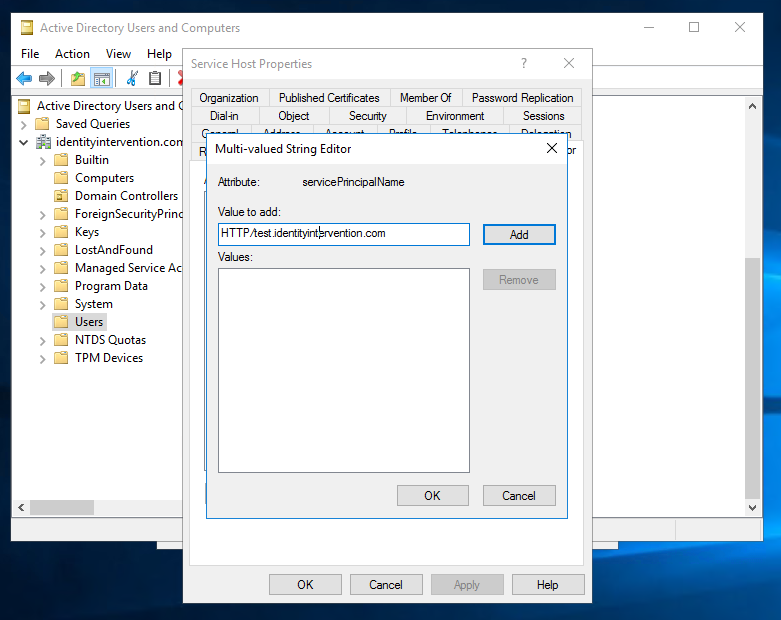
  8. Scroll down and find “servicePrincipalNames”. It’ll have an empty value. Click Edit.
  9. Add the SPN we defined earlier of “HTTP/test.identityintervention.com”
  10. Save all the changes
Adding a Service Principal Name

Adding a Service Principal Name

Alright, we now have an SPN for our service. You’ll notice the password you entered matches the password used in the sample code. This isn’t a coincidence — Active Directory uses this as the key to encrypt the ticket. Only the service should know the password, so only it can decrypt it. Now try hitting the our endpoint in the browser again. This time you’ll be prompted for credentials again, but the service will now be able to decrypt the ticket and you’ll end up with a result along the lines of:

Request: Mechanism: SPNEGO | MessageType: KRB_AP_REQ | SName: NT_SRV_INST, HTTP,test.identityintervention.com | 
Realm: IDENTITYINTERVENTION.COM | Ticket EType: RC4_HMAC_NT | Auth EType: RC4_HMAC_NT

Ticket: Flags: 1084293120 | CName: NT_PRINCIPAL, Administrator | CRealm: IDENTITYINTERVENTION.COM; | Version: 5 | 
Realm: IDENTITYINTERVENTION.COM | Sequence: 1966700342

That all looks about right, but being prompted for credentials is kind of annoying. Windows isn’t detecting that your test domain is within the intranet zone so it’s not going to automatically send a ticket (it won’t even check that the SPN exists). To fix this just add your test domain to the intranet zone on your computer.

  1. Open Internet Explorer
  2. Open the Settings > Security tab
  3. Select Local Intranet Zone and hit the Sites button
  4. Add the site https://test.identityintervention.com to the list and save it
  5. Close the browser and retry the request

Look Ma, no prompt!